Stream Deck Plugin
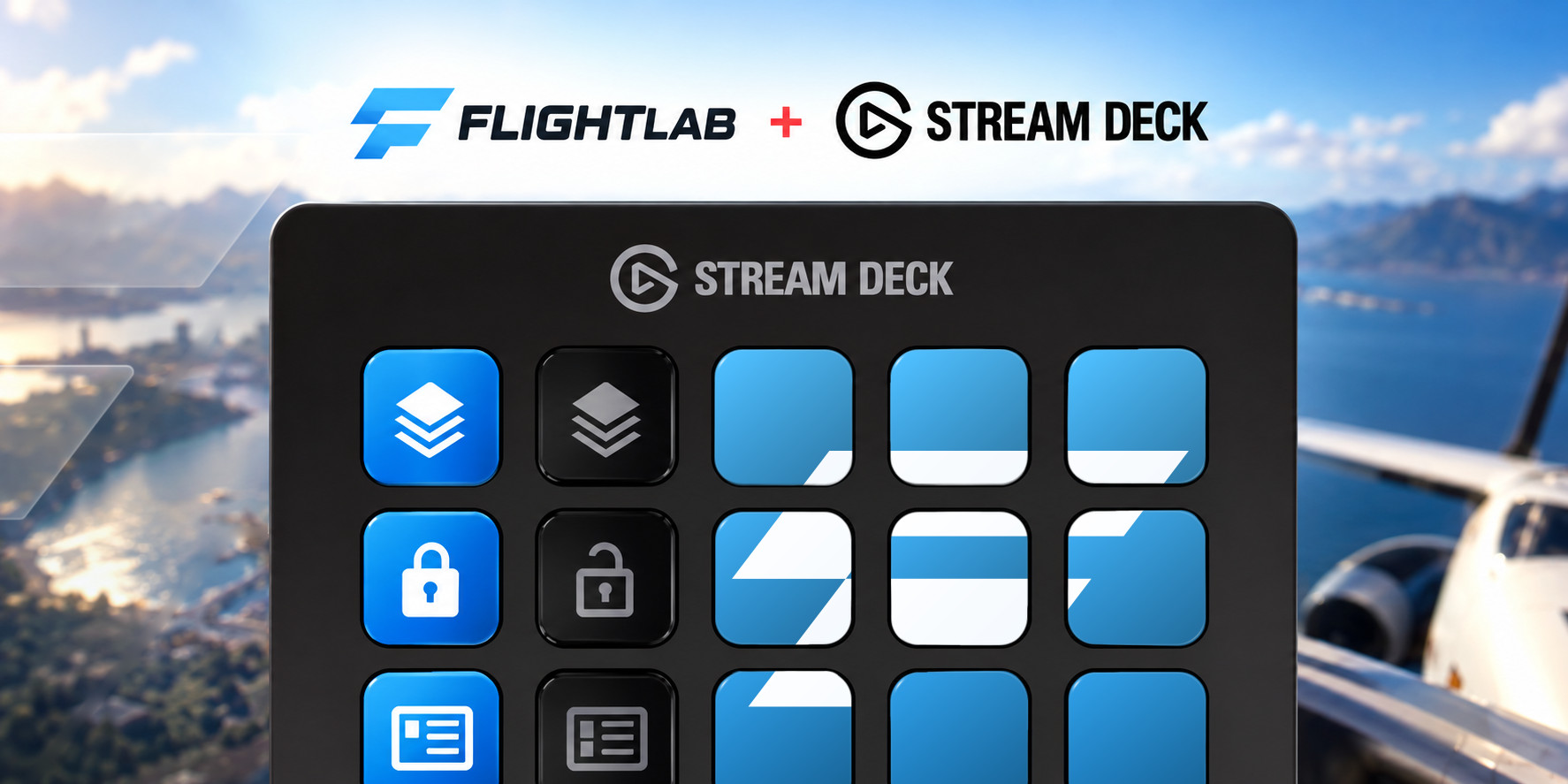
The FlightLab Stream Deck plugin lets you control overlays, VR, overlay sets and more directly from your Elgato Stream Deck. Buttons update in real time to show what FlightLab is doing.
Requirements
- Elgato Stream Deck software version 6.9 or later
- FlightLab running on the same PC
The plugin talks to FlightLab over a local connection. FlightLab must be running for the buttons to work.
Installation
The plugin is on the Elgato Marketplace. Open that page and click Get, or install it from inside the Stream Deck app:
- Open the Stream Deck app.
- Go to the Elgato Marketplace (the store icon).
- Search for FlightLab.
- Click Install.
Once installed, the FlightLab actions appear under FlightLab in the action list on the right side of the Stream Deck app. Drag an action onto a key, then pick its options in the settings panel below.
Actions
Toggle Overlay
Open or close one FlightLab overlay. Pick the overlay from the Overlay list in the button's settings. The button lights up while the overlay is open.
Pro overlays, the ones with the Pro icon in FlightLab's overlay menu, need a FlightLab Pro membership.
- Active
- Inactive













Launch FlightLab

Start or close FlightLab directly from your Stream Deck.
- Short press - Starts FlightLab
- Long press (hold for 0.5 seconds) - Closes FlightLab
The button lights up while FlightLab is running and connected.
A long press closes FlightLab at once. FlightLab saves your flight history every minute, so the last minute of a flight in progress can be missing from it.
Show / Hide Overlays

Show or hide all FlightLab overlays at once. The button lights up while your overlays are visible.
Lock / Unlock Overlays

Lock or unlock all overlays. Locked overlays ignore your mouse, so you can't move, resize or click them by accident while you fly. The button lights up while the overlays are unlocked.
Start / Stop Layouts
Start or stop your overlay layout, like Start Layouts in FlightLab's footer. The button lights up while the layout runs. Layouts need a FlightLab Pro membership.
Start / Stop VR

Start or stop VR, like Start VR in FlightLab's footer. The button lights up while VR runs. See Use VR with FlightLab.
Recenter VR
Recenter your VR overlays with a single press, like the Recenter VR key binding.
Activate Overlay Set

Jump directly to one of your VR overlay sets. Pick Set A to Set J in the button's Command list: they activate the first to tenth set of the selected sim, whatever you named them. The button lights up while that set is active. A set that doesn't exist or is empty does nothing. See Choose the active set.
Cycle Overlay Set

Step forward or backward through your VR overlay sets. Pick Cycle Next or Cycle Previous in the button's Command list. Empty sets are skipped.
Themes
Most actions support several icon themes. To change a button's theme, click the button in the Stream Deck app and pick one from the Theme list in its settings panel.
Flat
The default theme. Clean, solid icons with a colored background when active and black when inactive. Pick a preset or any color (FlightLab blue by default).
Glow


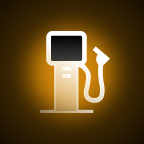
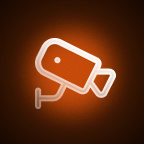
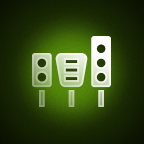
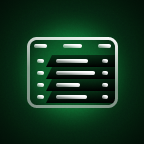
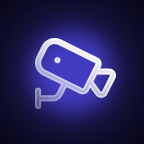
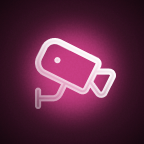
Neon-style icons with a soft colored glow on a dark background. Pick a preset or any color (FlightLab blue by default).
Plain


Minimal white-on-black icons. No color, no effects.
Glass

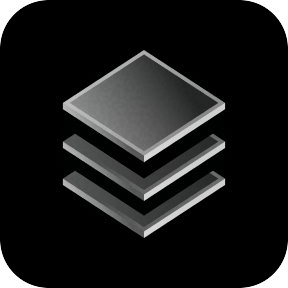
Translucent, frosted-glass style icons in 13 colors, for Show / Hide Overlays, Lock / Unlock Overlays, Start / Stop Layouts and the Weather Monitor overlay.


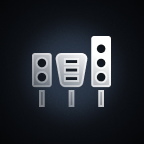

Original
Only for the Launch FlightLab button: the FlightLab app icon.
Troubleshooting
Buttons show as disconnected or don't respond
Make sure FlightLab is running. The plugin connects to FlightLab over a local connection on your PC. If FlightLab isn't running, buttons can't send commands or receive state updates.
Button icons don't update in real time
Check that FlightLab is running and up to date. The real-time sync uses a connection that starts automatically when FlightLab buttons are visible on your active Stream Deck profile.